
确保您的 Mac 装有 macOS Big Sur 11.1 或更高版本。
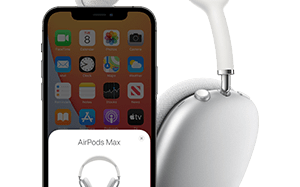
如果您已使用 iPhone 设置了 AirPods Max,并且您的 Mac 已使用同一 Apple ID 登录 iCloud,那么 AirPods Max 可直接与您的 Mac 搭配使用。如果两者无法连接,请戴上 AirPods Max,再点按 Mac 菜单栏中的“蓝牙”菜单 或音量控制项
 。接下来,从列表中选取 AirPods Max。
如果您在蓝牙 或音量控制 菜单中没有看到 AirPods Max,请将 AirPods Max 与您的 Mac 配对:
- 在 Mac 上,从苹果菜单 () 中选取“系统偏好设置”,然后点按“蓝牙”
 。
。 - 确保“蓝牙”已打开。
- 按住噪声控制按钮,直到状态指示灯呈白色闪烁。
- 在“设备”列表中选择您的 AirPods Max,然后点按“连接”。

如果声音仍然通过 Mac 扬声器播放,请点按菜单栏中的“蓝牙”菜单 或音量控制项 ,并确保 AirPods Max 已选作输出设备。
标签: AirPods Max
版权声明:除非特别标注,否则均为本站原创文章,转载时请以链接形式注明文章出处。侵权删联系:site777#qq.com #换@



还木有评论哦,快来抢沙发吧~